TutorielTutorial
Du téléchargement à la lecture d'un run, chapitre par chapitre. Les boutons portent les noms que l'app affiche, en anglais.From the download to reading a run, chapter by chapter. The buttons carry the names the app shows.
InstallerInstall
Télécharge l'installeur sur la page Télécharger et lance-le. Il s'installe pour ton compte Windows, sans droits d'administrateur, et peut créer un raccourci EzCrew Engineer sur le bureau.
Pendant la bêta, l'installeur n'est pas encore signé. Si Windows affiche « Windows a protégé votre ordinateur », clique sur Informations complémentaires, puis sur Exécuter quand même.
Sur certains PC Windows 11, le Contrôle intelligent des applications (Smart App Control) bloque tout installeur non signé, sans bouton pour passer outre. Il se désactive dans Sécurité Windows, sous Contrôle des applications et du navigateur. Attention : Windows ne peut plus le réactiver ensuite sans réinitialiser le PC.
Download the installer from the Download page and run it. It installs for your Windows account, without administrator rights, and can put an EzCrew Engineer shortcut on the desktop.
During the beta the installer is not code-signed yet. If Windows says “Windows protected your PC”, click More info, then Run anyway.
On some Windows 11 PCs, Smart App Control blocks every installer that is not signed, with no button to go past it. It is turned off in Windows Security, under App & browser control. Mind that Windows cannot turn it back on afterwards without resetting the PC.
Activer une cléActivate a key
Au premier lancement, l'app ouvre Activate a package. Colle ta clé EzCrew dans Package key, clique sur Activate, puis sur Open EzCrew Engineer. Pas encore de clé ? Demande-la sur le Discord d'EzCrew.
Une clé ouvre une classe iRacing : la classe C, les camions NASCAR, pour l'instant ; la B, la série O'Reilly, est en construction, et la A, la Cup, est à venir. La première activation demande Internet ; ensuite l'app fonctionne hors ligne et vérifie la clé au moins une fois par semaine.
Pour ajouter une classe plus tard : Settings, au pied de la tour, puis Packages and license et Add a package key…. Pour changer de PC, clique sur Move to another PC à côté de la clé : la place de ce PC se libère, et la même clé s'active sur l'autre.
At the first launch the app opens Activate a package. Paste your EzCrew key into Package key, click Activate, then Open EzCrew Engineer. No key yet? Ask for one on the EzCrew Discord.
One key unlocks one iRacing class: Class C, the NASCAR trucks, for now; B, the O'Reilly series, is under construction, and A, Cup, is coming. The first activation needs the internet; then the app works offline and checks the key at least once a week.
To add a class later: Settings, at the foot of the tower, then Packages and license and Add a package key…. To change PCs, click Move to another PC beside the key: this PC's place frees, and the same key activates on the other one.
Le dossier de télémétrieThe telemetry folder
EzCrew Engineer lit chaque nouvelle IBT qu'iRacing écrit dans son dossier de télémétrie, celui de Windows par défaut. Tu le vois dans Settings › General › Telemetry folder.
Si iRacing écrit sa télémétrie ailleurs, clique sur Change… et choisis ce dossier ; Use the Windows folder revient au dossier par défaut. iRacing n'écrit une IBT que si l'enregistrement de la télémétrie est actif (par défaut Alt L dans la voiture). Tes IBT restent où elles sont : l'app les lit, elle ne les déplace pas.
EzCrew Engineer reads each new IBT that iRacing writes to its telemetry folder, Windows' by default. You see it in Settings › General › Telemetry folder.
If iRacing writes its telemetry somewhere else, click Change… and pick that folder; Use the Windows folder goes back to the default. iRacing writes an IBT only while telemetry recording is on (by default Alt L in the car). Your IBT files stay where they are: the app reads them, it does not move them.
RoulerDrive
Roule, puis sors de la voiture : une trentaine de secondes plus tard, le run apparaît en haut de la tour, déjà lu. Rien à exporter, rien à ouvrir.
Pour lire une IBT plus ancienne, clique sur Import an IBT… en haut de la tour (Ctrl O).
Un run d'une classe qui n'est pas dans tes forfaits reste dans la liste, sous Not read.
Drive, then leave the car: about thirty seconds later the run shows at the top of the tower, already read. Nothing to export, nothing to open.
To read an older IBT, click Import an IBT… at the top of the tower (Ctrl O).
A run of a class that is not in your packages stays in the list, under Not read.
Lire un runRead a run
Clique sur un run dans la tour : il s'ouvre sur Priorities. Chaque onglet commence par son verdict, en une phrase ; la plupart donnent ensuite la ligne What we want, la cible.
Viennent ensuite les cartes, chacune en quatre lignes : What we have, ce que montre le run ; What we aim for, la cible ; What it causes, l'effet sur la voiture ; How to correct, quoi changer. Les détails restent repliés : un clic les ouvre.
Sur une piste nouvelle, l'app propose ses zones de virage, et les garde à partir du premier run assez long.
Click a run in the tower: it opens on Priorities. Each tab starts with its verdict, in one sentence; most then give the What we want line, the target.
Then come the cards, each four lines: What we have, what the run shows; What we aim for, the target; What it causes, the effect on the car; How to correct, what to change. The details stay folded: a click opens them.
On a new track the app proposes its corner zones, and keeps them from the first run long enough.
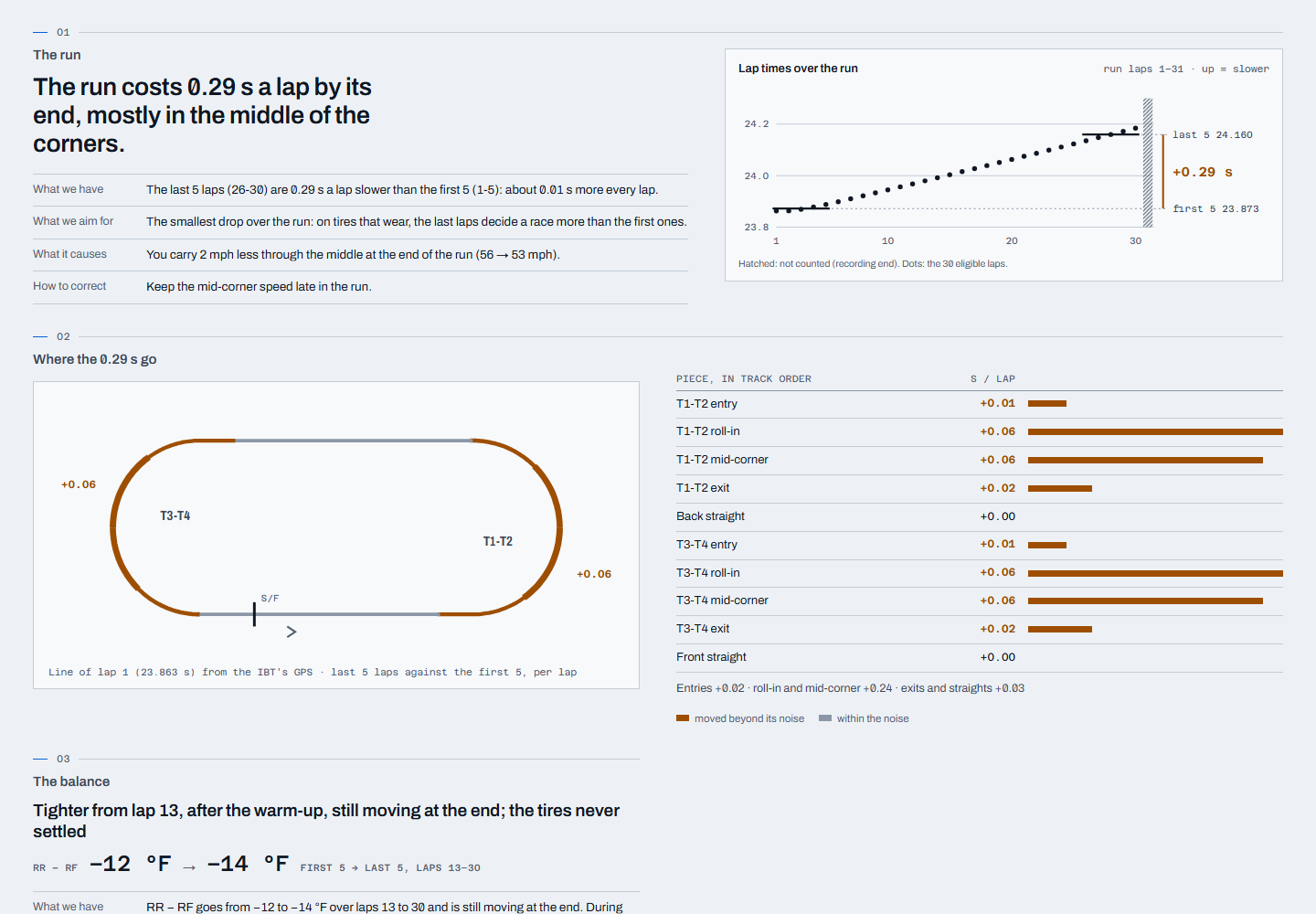
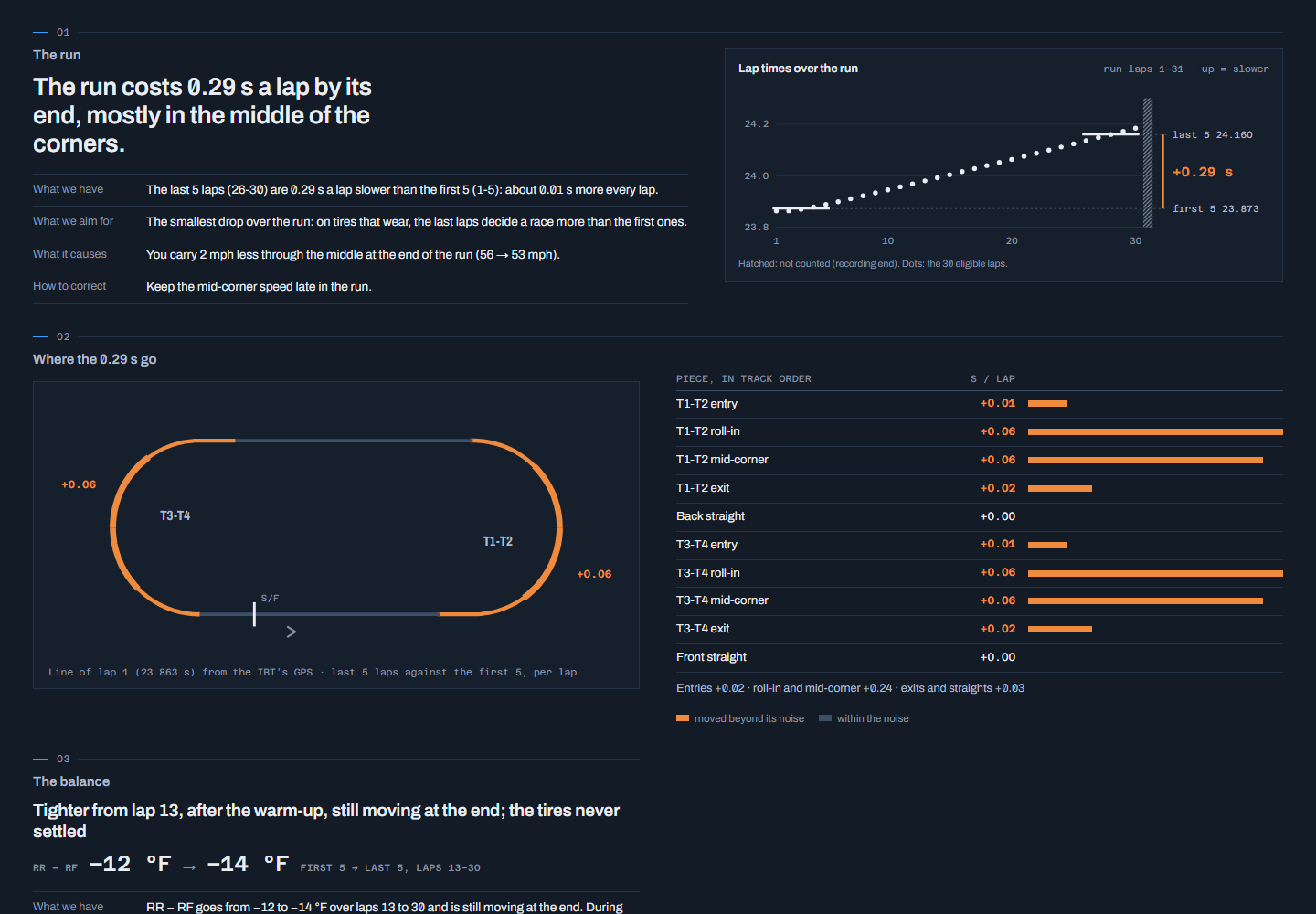
Chaque onglet, en pratiqueEach tab, in practice
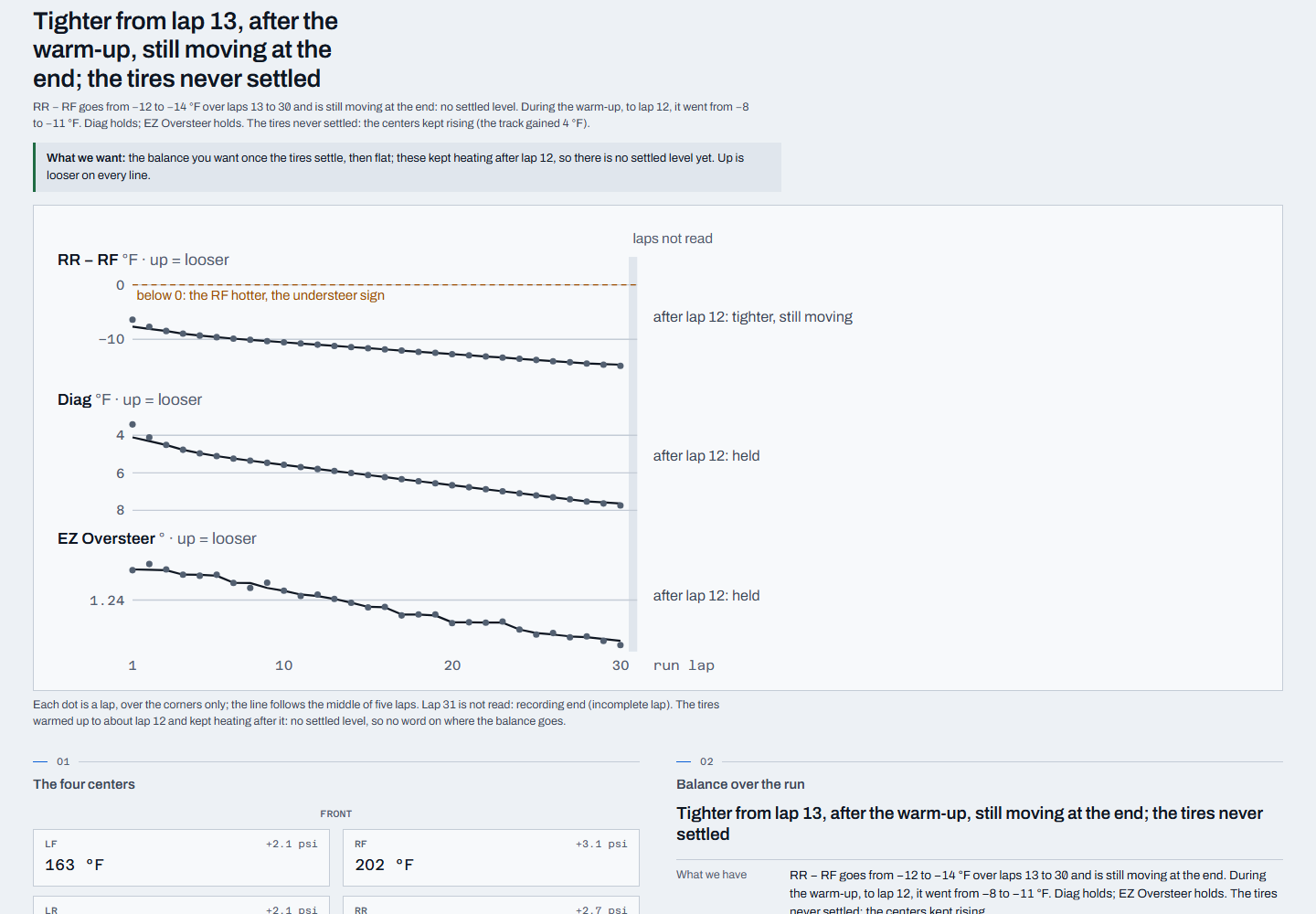
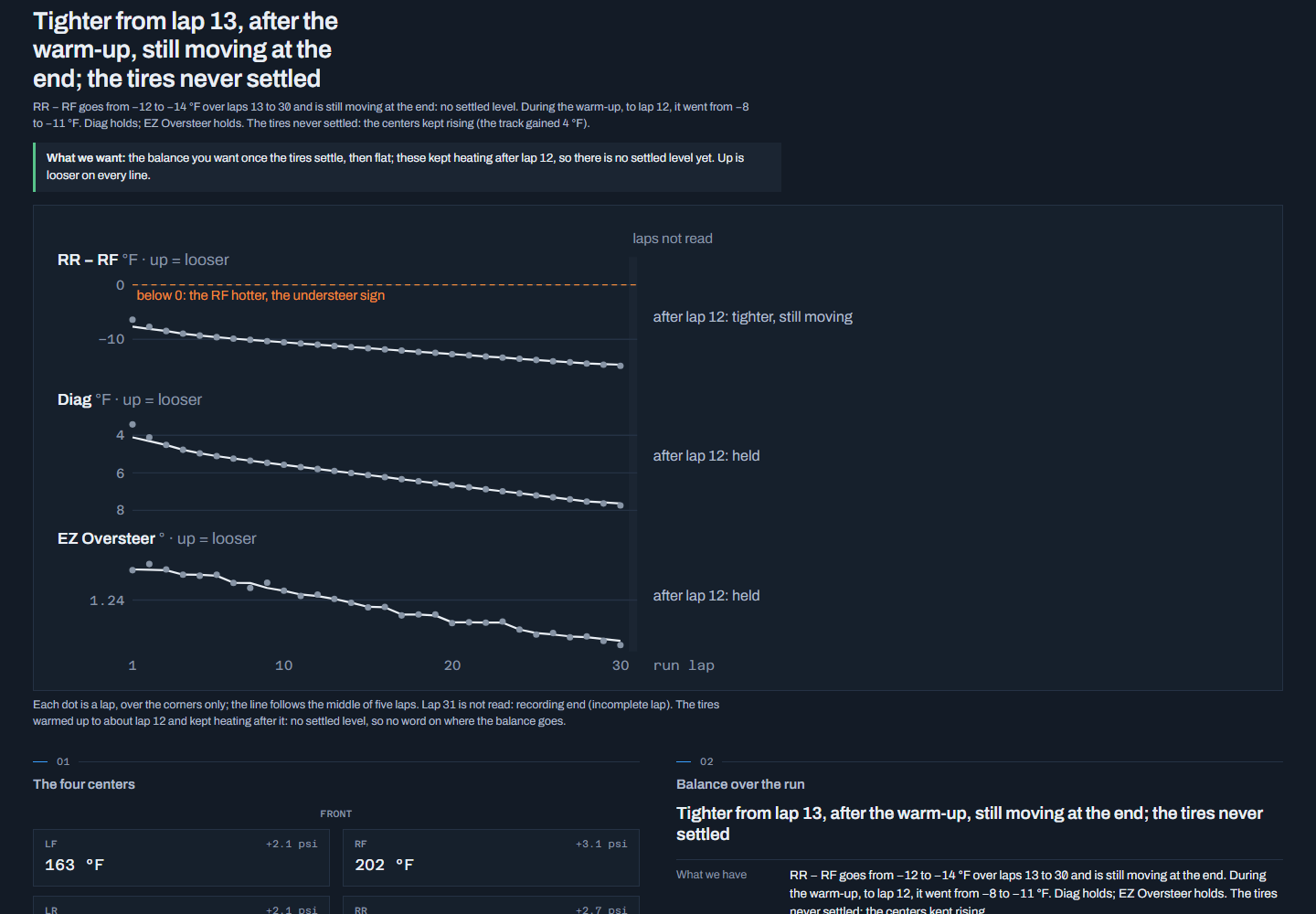
La page L'app montre chaque onglet avec sa capture. En pratique :
- Priorities : commence ici ; l'endroit qui coûte le plus est ce que tu corriges d'abord.
- Tires : lis la tendance après la mise en température ; vers le haut, c'est plus libre, vers le bas, plus serré.
- Corners : une case qui change de couleur montre la phase où la voiture bouge.
- Platform and aero : le vert, c'est le splitter à sa cible pendant que tu tournes.
- Shocks : un clic à la fois, puis un nouveau run pour en voir l'effet.
- Driving : le plein gaz le plus tôt possible, une fois la voiture accrochée.
The app's page shows each tab with its screenshot. In practice:
- Priorities: start here; the place that costs the most is what you fix first.
- Tires: read the trend after the warm-up; up is looser, down is tighter.
- Corners: a cell that changes colour shows the phase where the car moves.
- Platform and aero: green is the splitter at its target while you turn.
- Shocks: one click at a time, then a new run to see what it did.
- Driving: full throttle as early as you can, once the car is hooked.
Comparer des runsCompare runs
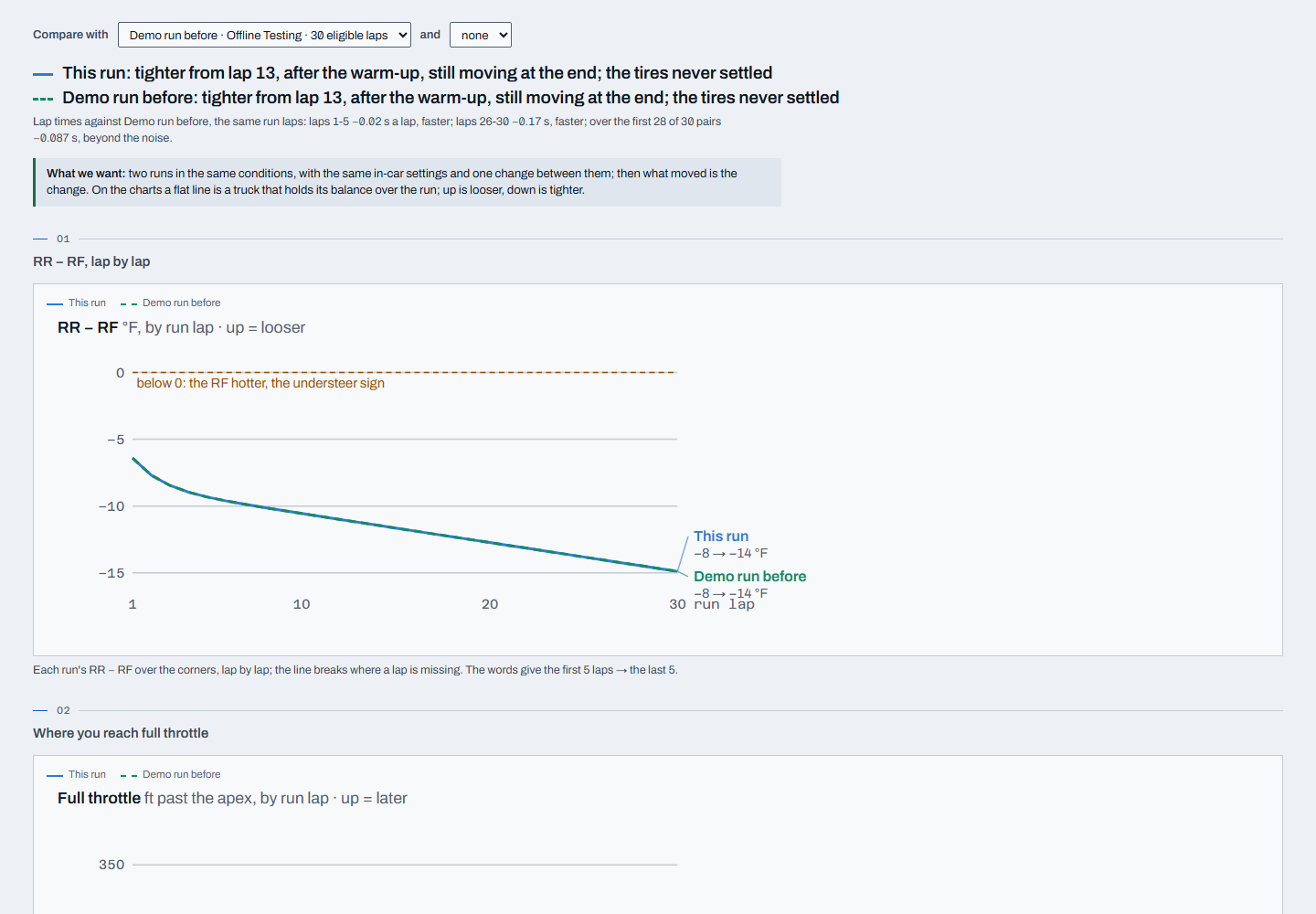
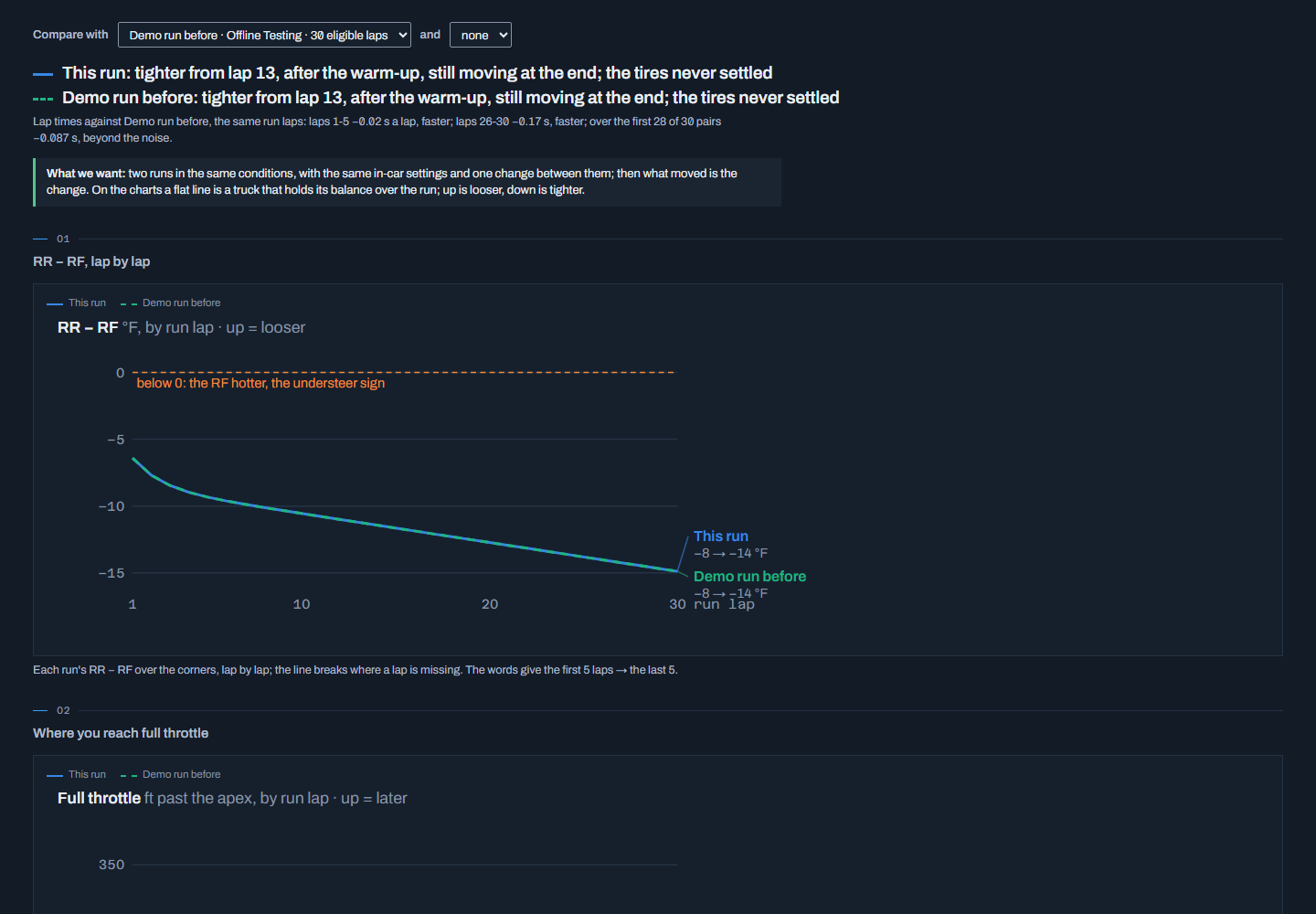
L'onglet Compare met ce run face au run d'avant au même endroit : même voiture, même piste, même configuration. Tu peux en choisir un autre, et en ajouter un second.
Pour savoir ce qu'un changement a fait, roule deux runs dans les mêmes conditions, avec les mêmes réglages en voiture et un seul changement entre les deux : ce qui bouge, c'est le changement. Sur les graphiques, une ligne plate est une voiture qui garde son équilibre ; vers le haut, c'est plus libre, vers le bas, plus serré.
The Compare tab sets this run against the run before it at the same place: the same car, track and configuration. You can pick another one, and add a second.
To know what a change did, drive two runs in the same conditions, with the same in-car settings and one change between them: what moves is the change. On the charts a flat line is a car that holds its balance; up is looser, down is tighter.
Le journalThe Journal
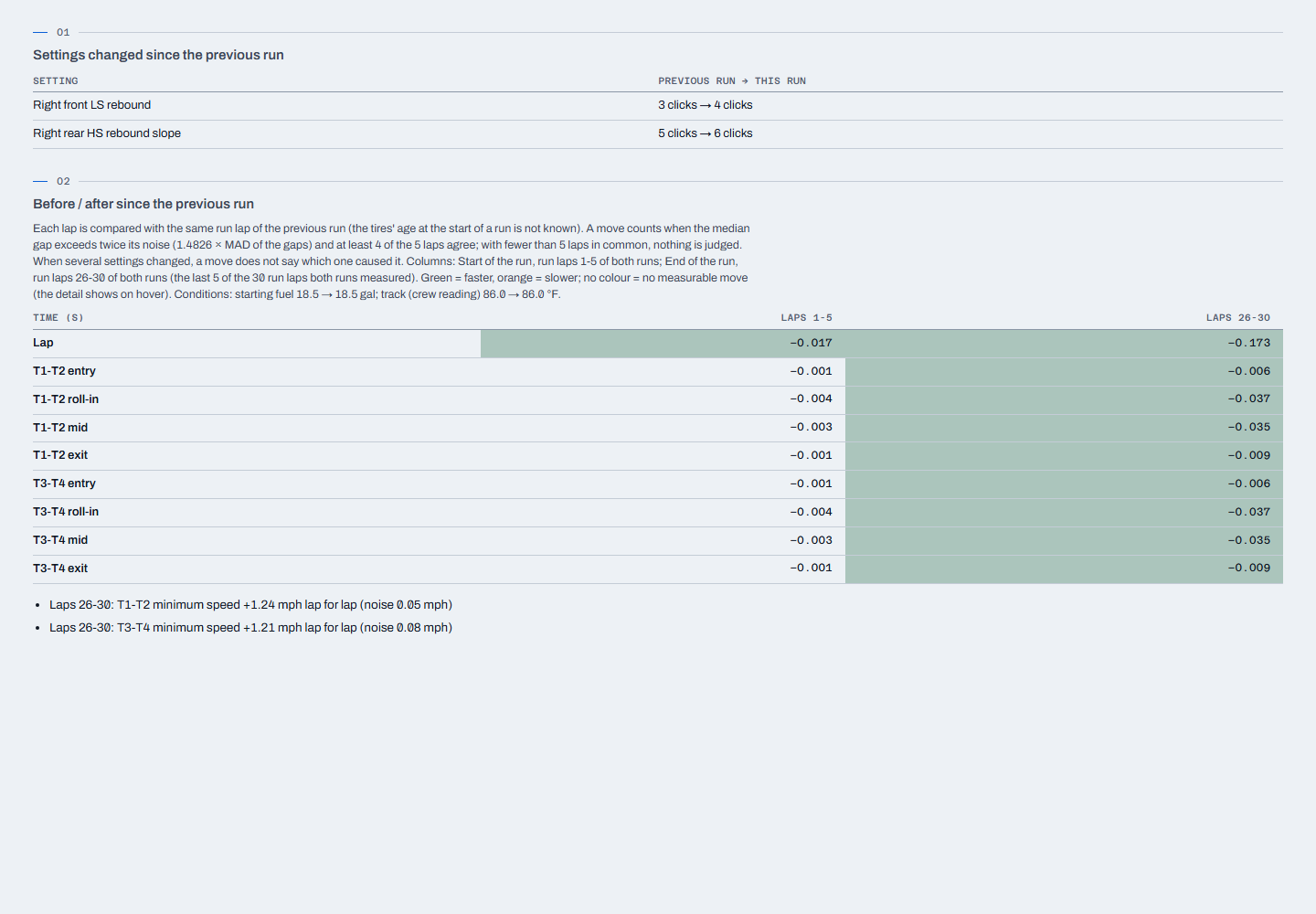
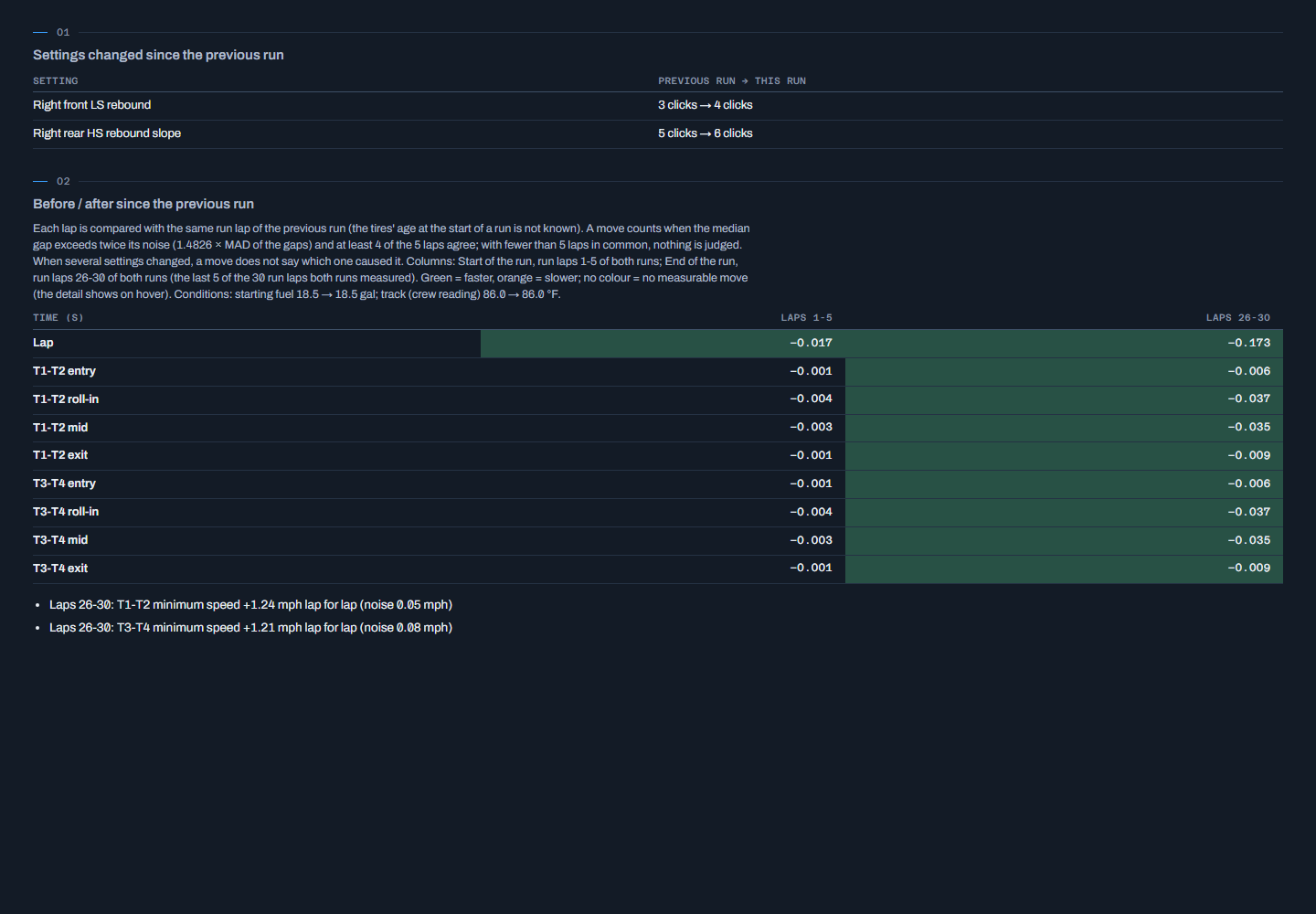
L'onglet Journal garde, run après run, les réglages changés depuis le run précédent et ce qui a bougé avant et après : le temps au tour, chaque virage, chaque phase.
Il lit ton setup dans l'IBT : rien à noter à la main.
The Journal tab keeps, run after run, the settings changed since the previous run and what moved before and after: the lap time, each corner, each phase.
It reads your setup from the IBT: nothing to write down by hand.
Le rapport texte et l'exportThe text report and the export
L'onglet Text report donne le run en texte, avec ses mesures et leurs définitions.
La page Export enregistre le run en un fichier JSON (Save the file…, ou Copy), et tous tes runs en un fichier ZIP (Save the backup…). Tes IBT restent dans le dossier de télémétrie d'iRacing.
The Text report tab gives the run as text, with its measures and their definitions.
The Export page saves the run as one JSON file (Save the file…, or Copy), and all your runs as one ZIP file (Save the backup…). Your IBT files stay in iRacing's telemetry folder.
Les mises à jourUpdates
L'app vérifie ezcrewai.com à l'ouverture, puis une fois par jour. Une mise à jour se télécharge en arrière-plan et sa signature est vérifiée ; une ligne apparaît alors au pied de la tour. Clique sur Restart, puis sur Restart and update : l'app se ferme, s'installe et se rouvre. Tes runs, ton journal, tes profils de piste et tes clés restent tels quels.
Pour vérifier tout de suite : Settings › Updates › Check now. Si une mise à jour n'a pas fini, la ligne au pied de la tour propose Run its installer ; sinon, la dernière version est sur la page Télécharger.
The app checks ezcrewai.com when it opens, then once a day. An update downloads in the background and its signature is checked; a line then shows at the foot of the tower. Click Restart, then Restart and update: the app closes, installs and opens again. Your runs, journal, track profiles and keys stay as they are.
To check right away: Settings › Updates › Check now. If an update did not finish, the line at the foot of the tower offers Run its installer; otherwise the latest version is on the Download page.
Tes données et la sauvegardeYour data and the backup
Tes runs lus, ton journal, tes profils de piste et tes réglages vivent dans ton dossier de données, sur ce PC : %LOCALAPPDATA%\EzCrew Engineer. Désinstaller l'app le garde.
Dans Settings › Data and backup, Open the data folder l'ouvre et Back up now… enregistre tes runs, ton journal et tes profils de piste en un fichier ZIP, sans tes IBT ni tes clés. Avant qu'une nouvelle version écrive dans ce dossier, l'app en garde aussi une copie automatique.
Your runs, journal, track profiles and settings live in your data folder on this PC: %LOCALAPPDATA%\EzCrew Engineer. Uninstalling the app keeps it.
In Settings › Data and backup, Open the data folder opens it and Back up now… saves your runs, journal and track profiles as one ZIP file, without your IBT files or your keys. Before a new version writes to that folder, the app also keeps an automatic copy.
Aide, logs et signaler un problèmeHelp, logs and reporting a problem
Settings › Help and logs dit quoi faire quand un run n'est pas lu ou qu'une mise à jour bloque. Open the logs folder ouvre les logs de l'app : ils ne contiennent jamais ta clé ni l'identifiant de ton PC.
Report a problem… envoie ta note et la fin du log à ezcrewai.com, après t'avoir montré exactement ce qui part. Pour tout le reste, il y a le Discord d'EzCrew.
Settings › Help and logs says what to do when a run is not read or an update gets stuck. Open the logs folder opens the app's logs: they never hold your key or your PC's ID.
Report a problem… sends your note and the end of the log to ezcrewai.com, after showing you exactly what it sends. For anything else, there is the EzCrew Discord.